PHYSIOTHERAPY · MASSAGE · PRIVATE PRACTICE · PSYCHOTHERAPY

Software for clinicsand private practices

Manage appointments, patient messages and invoices in one app. Patients choose a time online, and bookings appear in your clinic's calendar.

  • Start with a calendar and online booking.
  • Add other tools when you need them.
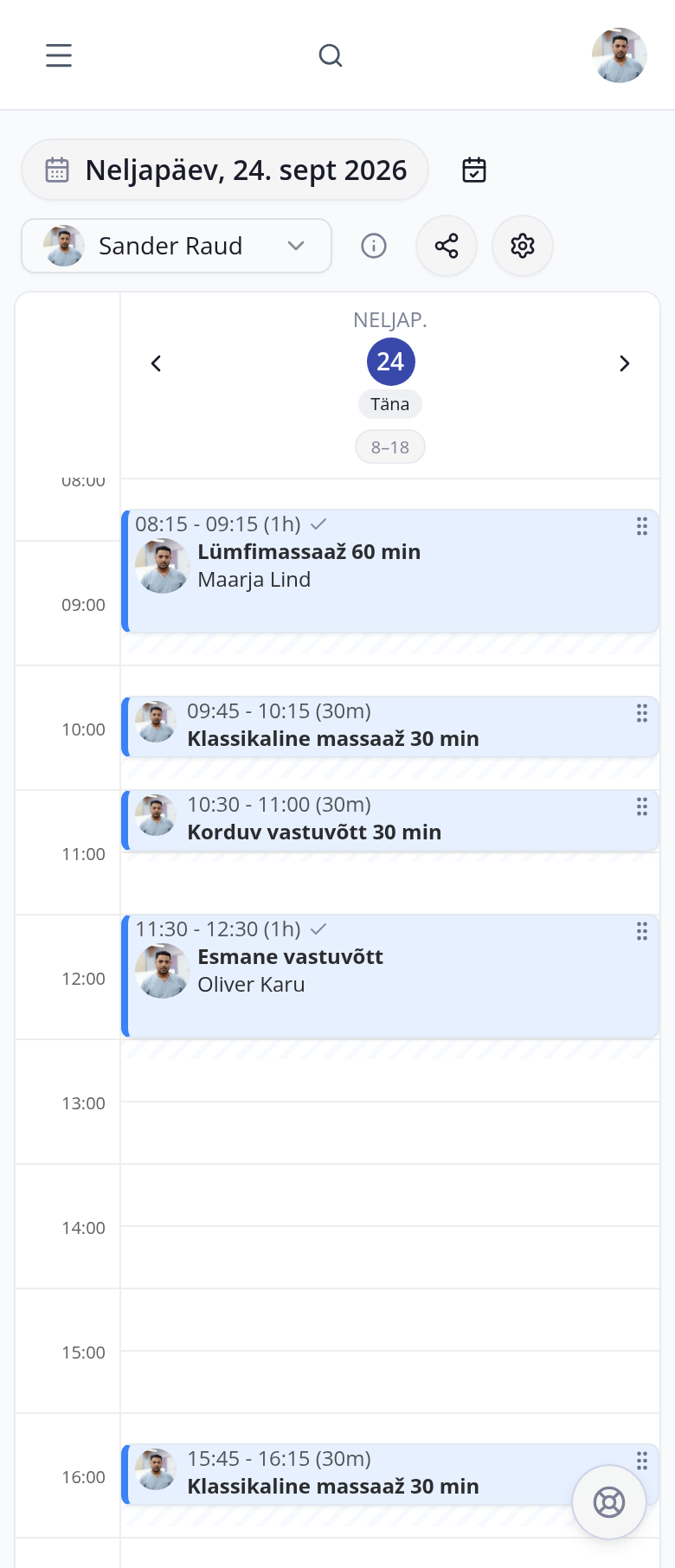
broneerimine.ee calendar on a phone: a specialist's day, lymphatic massage at 8:15, classic massage at 9:45 and a follow-up at 10:30
broneerimine.ee/sinu-kliinik/admin
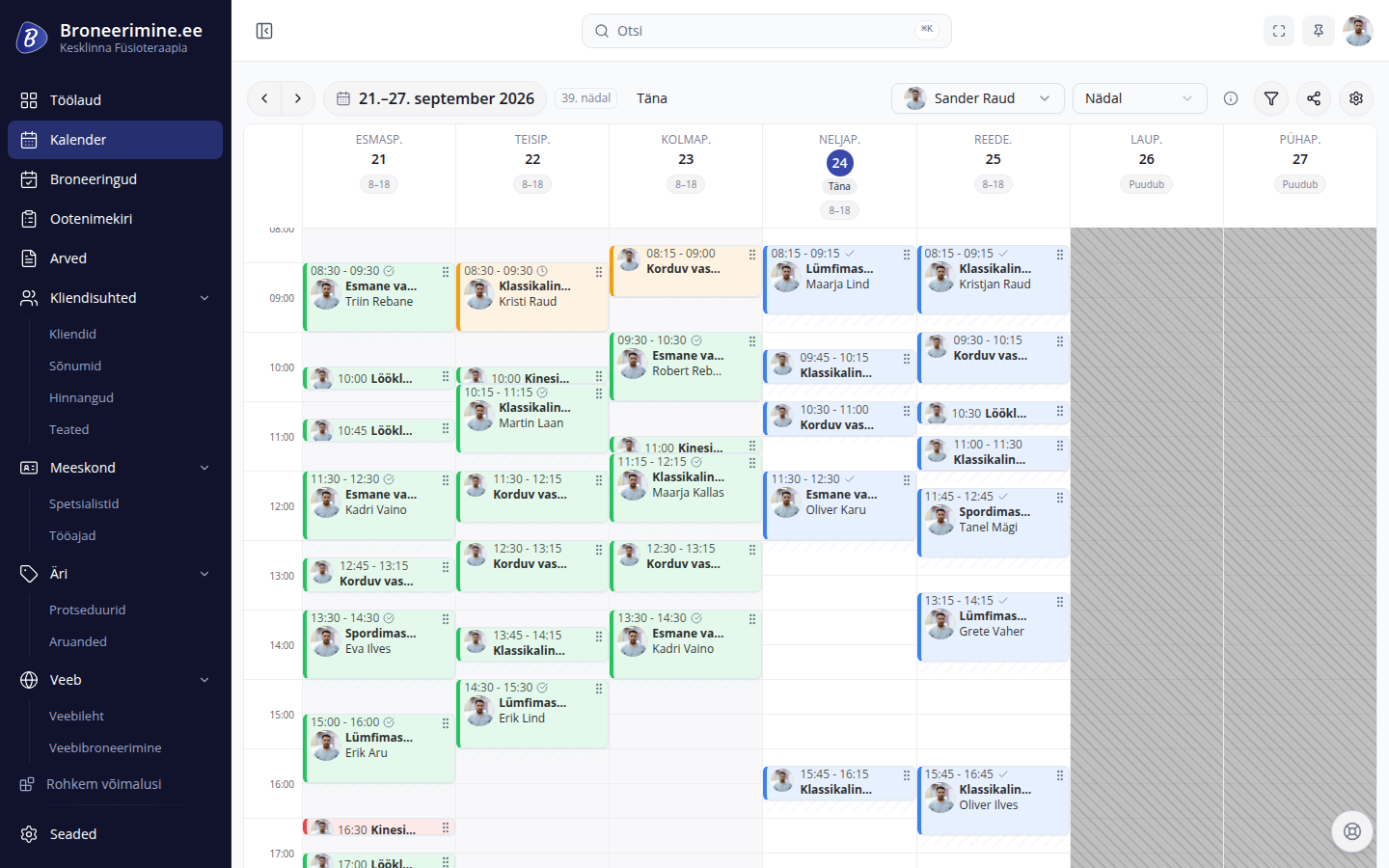
broneerimine.ee physiotherapy clinic calendar: a week of initial and follow-up appointments and massages

Does the patient need an invoice for their employer?Create it from the booking, with a payment reference if needed.

See how to create an invoice

Patients choose their own appointment

Your booking page shows procedure prices, durations and available times. Patients choose a practitioner and time, then confirm with their contact details.

Also:

  • send patients automatic email reminders
  • take an upfront payment through the clinic's payment provider when patients book

1 / 5

Before the appointment and after the patient leaves

Before the visit, the patient gets a reminder and you review their answers. Afterwards, leave time to prepare the room and ask the patient for feedback.

  1. BEFORE THE VISIT

    The patient gets an appointment reminder

    Choose how far ahead to send a reminder. The app emails the patient at your chosen time.

    Choose when reminders go out and edit the message. The app then sends them automatically at that time.

    Email or SMS

    Send reminders by email or SMS. Choose which message best helps patients remember their appointment.

    EmailAppointment reminderHello, Karl!We look forward to seeing you on 24.09.2026 at 9.00.Procedure: initial appointment.Kesklinna Füsioteraapia 1 day before the appointment at 18.00
  2. BEFORE ARRIVAL

    Review answers and notes before the visit

    Read the patient's answers and previous arrangements in the booking. For example, you can see in advance that they need an invoice for their employer.

    Patient answers are saved with the booking. Employees who may see client notes or manage clients can see them. Set access rights to control who needs this information for their work.

    What to ask patients

    Ask, for example, what is troubling the patient or who the invoice should be made out to.

    Use notes to record appointment arrangements so they are close at hand next time.

    In the bookingKarl PärnInitial appointment · 24.09 at 9.00What is troubling you?Lower back pain for two weeks, especially in the morning.Do you need an invoice for the visit?Yes, for my employer, please.You choose which questions patients answer when booking.
  3. AFTER THE VISIT

    Leave time to prepare the room

    Add time after a procedure to prepare the room. The app offers the next patient a time after those preparation minutes have passed.

    Set extra minutes for each procedure. They appear separately in the calendar, so the team can see when the appointment itself ends.

    Buffer time is added to the procedure's duration. Set it to match how long you need to prepare the room after a visit.

    WednesdayOne practitionerTimeIn the calendar9.00–10.00Initial appointment10.00–10.10Time to prepare the room10.10–10.55Follow-up appointment, 45 min
  4. AFTER THE APPOINTMENT

    Ask patients how their visit went

    Patients can receive an email inviting them to review their visit. You choose whether to send these requests.

    Patient reviews show how satisfied they were with their visit. All responses appear in one view in the clinic's admin.

    Read responses and view ratings by period to see what patients highlight about your clinic.

    EmailHow was your visit?Hello, Karl!If you have a moment, please leave a review of your visit.Kesklinna FüsioteraapiaLeave a review For example, the next day

BILLING

Create an appointment invoice from the booking

The invoice draft takes the procedure and amount from the booking. Check the details and choose whether to invoice the patient or their employer.

  • Booking details go straight into the invoice

    Start an invoice from the patient's booking. The app adds the patient, procedure and amount to the draft, ready for you to check and issue.

    Set the clinic details, bank account and usual payment terms once in settings. You can also set invoice numbering and enable payment references there.

    1. Create a draft from the bookingOpen the booking and create an invoice. Invoice lines come from the booked procedures.
    2. Check the detailsCheck the buyer, invoice lines, amounts and due date. If the employer is paying, make the invoice out to them.
    3. Issue the invoiceThe invoice receives a number and its contents are locked. If payment references are enabled, the app adds one too.
    4. Send to the patientSend the invoice by email or download a PDF. Mark it as paid when the payment arrives.

    If an issued invoice has an error, cancel it and create a new one. The cancelled invoice stays in the list with its number.

Invoice list.

WAITLIST

Offer an available appointment to a patient on the waitlist

Patients join the waitlist with their preferred procedure and times. When a time opens up, the app finds a suitable patient and sends an offer.

  • The patient confirms the offered time

    The patient decides whether to book the offered time. Once they confirm, the booking appears in the clinic's calendar.

    The waitlist shows who is still waiting, who has received an offer and who has confirmed.

    1. The app offers a timeA suitable patient on the waitlist receives an offer for the available appointment.
    2. The patient confirmsOnce the patient accepts, the booking appears in the clinic's calendar.
    3. Unanswered offers move onIf the patient does not reply, the next suitable patient receives the offer.

Waitlist.

Build your practitioners' rota in the same app

Staff hours need to fit both the clinic's needs and practitioners' availability. The rota generator helps you build a monthly rota that accounts for workloads, holidays and requested days off.

  • Build a monthly rota for practitioners

    Add practitioners and their workloads, then holidays and preferences, such as a Friday someone has requested off.

    The app creates three rota options. Check which days each practitioner sees patients and choose the best fit for your clinic.

    1. Add practitioners and workloadsSet each practitioner's workload, such as full-time or half-time.
    2. Add holidays and preferencesThe app leaves holidays free and accommodates requested days off where possible.
    3. Choose a rota and use itCompare three rota options, adjust your choice and apply it as the practitioners' working hours.

    Give reception access to the calendar while keeping the clinic's finances with its manager.

    You setAnu Ojafull-timeHelen Kukkrequests 16 Oct offfull-timeLiis Saarfull-timeMartin Rebaneholiday 8–12 Octhalf-timeGenerateThree rota optionsOctober 2026BalancedPreferences firstHours firstBalanced: all preferences metThursdayFridayMonday8Anu Oja8–18Liis Saar8–18Martin Rebaneholiday9Helen Kukk8–18Anu Oja8–18Martin Rebaneholiday12Anu Oja8–16Liis Saar8–16Martin Rebaneholiday15Helen Kukk8–18Liis Saar8–1816Anu Oja8–18Liis Saar8–18Helen Kukkrequest19Anu Oja8–16Martin Rebane8–16

AI helps patients book and you run the clinic

AI assistants help patients find and book an appointment. In the admin, ask the assistant for an overview of clinic bookings and working hours.

For your patients

Arrange an appointment through chat 

On the booking page, the assistant answers questions about procedures, prices and available times. When a patient finds a suitable time, it helps them book and asks them to confirm the details.

  1. Patient:

    Hello! Is there an initial appointment available on Thursday afternoon?

  2. AI receptionist:

    Yes, Anu Oja is available for an initial appointment on Thursday at 15.00 (65 €, 60 min).

After the patient confirms

Booking made

Time
24 September 2026 · 15.00–16.00
Kesklinna Füsioteraapia

For you

Ask the assistant about your clinic's week 

In the admin, ask how many appointments are booked for next week, for example. The assistant answers using the clinic's bookings and working hours, and you can ask follow-up questions.

  1. Clinic manager:

    How many appointments do we have next week?

  2. AI assistant:

    There are 24 appointments booked for next week, totalling 18 hours.

Kesklinna Füsioteraapia

A multilingual page

Translations let patients read about appointments and book in their language. Translate procedure descriptions, practitioner profiles and patient messages.

The translation overview shows what is ready and what still needs adding. Once translations are complete, make the language available on your booking page.

Questions before the visit

Add questions to the booking form to help you prepare. Patients answer when booking, and their answers stay with the booking.

What to ask patients

Ask whether this is the patient's first visit or if they need an invoice for their employer.

Employees who may see client notes or manage clients can see the answers and prepare for the appointment.

Full or partial upfront payment

Patients pay for the appointment when they book, and the money goes straight to the clinic's account.

What's included

  • Take full payment or set a deposit as a fixed amount or percentage.
  • Set upfront payment terms for each procedure separately.
  • The app holds the time while payment is pending and releases it if the patient does not pay in time.

A contract for online payments

To take online payments, your clinic signs a contract with a payment service provider. We help you sign the contract and start taking online payments.

Smart-ID and Mobiil-ID

Ask patients to verify their identity with Smart-ID or Mobiil-ID before confirming a booking.

Choose whether to require verification for all procedures or selected ones. Patients see a message explaining why it is needed.

Time to prepare the room

Leave room preparation time in the calendar after an appointment. Set a buffer for the procedure and the app accounts for it when offering the next available times.

Set the buffer in minutes, added to the procedure's duration. The team sees the appointment and preparation time separately in the calendar.

Patient reviews

After their visit, patients receive an email inviting them to leave a review. Read all responses in one view in the clinic's admin.

You choose whether to send invitations. Patients use a personal email link to leave a review, and you can view responses and average ratings by period.

Accounting connection

The accounting connection sends clinic invoices to your accounting software.

Invoice details are sent to the accounting program when you issue the invoice.

The same invoice number helps you find it in both systems.

Which programs and data

The connection works with any accounting program that has an API, a way for programs to exchange data. Almost every accounting program used in Estonia has one.

You choose which data goes over. The day's till sales can go as one summary after the day ends. When you mark an invoice paid, the payment can go to your accounting software too.

SMS reminders

Send booking confirmations and appointment reminders by SMS, so patients have the time handy on their phone. You choose which messages go by SMS and which by email.

Price

What will it cost your clinic?

Pricing depends on how many practitioners patients can book. Bookings, patients and procedures are unlimited.

Bookable practitioners
Billing period

Basic

For an appointment calendar and a patient booking page.

Basic, 1 practitioner:15 €/ month

excl. VAT · 1 practitioner Pay annually: 12,50 € per month, 150 € per year

For managing appointments

  • Public booking page and online booking
  • Calendar, working hours and rotas
  • Patients, booking history and notes
  • Automatic email reminders
  • Waitlist and “Any practitioner” option
  • Team calendar and access rights
  • Patient and booking import and export
  • Contact form on your booking page

Full

Invoices and questions

For invoices, pre-visit questions and translations too.

Full, 1 practitioner:29 €/ month

excl. VAT · 1 practitioner Pay annually: 24,17 € per month, 290 € per year

Everything in Basic, plus

  • Invoices for patients or their employers
  • Questions on the booking form
  • Extra time after procedures
  • Booking page and patient message translations
  • Post-visit reviews and reports
  • Identity verification with Smart-ID and Mobiil-ID
  • All AI modules
  • Online upfront payments through the clinic's own provider

Try Full free for 30 days. Choose your plan after the trial.

Try free for 30 days

Full includes 100–400 SMS credits a month in the price, depending on the number of employees. Extra credits and credits on Basic are bought separately.

Make your first appointments bookable online

Start with the clinic's details, procedure prices and practitioners' working hours. Patients can then use your booking page to choose an appointment.

Already have patients and appointments elsewhere? Import them from a spreadsheet — we can help prepare the file.

Get help importing clinic data
  1. Add your clinic's details

    Enter the clinic's name and contact details, then select “Clinic and healthcare” as your business type.

  2. Add procedures and appointment times

    Describe procedures, set prices and durations, and add practitioners' working hours. The app uses these to offer patients suitable appointment times.

  3. Share your booking page with patients

    Check that procedures and times are clear from a patient's point of view, then share the clinic's booking link.

Questions before you start

Broneerimine.ee is made in Estonia. We reply in Estonian.

info@broneerimine.ee
What patient details can I add to a booking?

Add appointment arrangements to a booking, such as who the patient's invoice should be made out to. Booking form answers are saved there too. Access rights control which employees can see the booking. Read about data handling

What happens after the 30-day trial?

After the trial, choose a plan and keep using the same account. The trial lasts 30 days. See the pricing section for plans and prices.

Does the price depend on practitioner count?

Yes. We count practitioners patients can book: 1, 2–3, 4–5 or 6 and above. The last band has a fixed price for unlimited practitioners. Patient, booking and procedure counts do not affect the monthly fee.

Will patient invoices have a payment reference?

Yes, if you enable it in settings. The app adds a payment reference alongside the invoice number when you issue the invoice, so patients can use it when paying.

Can patients book without an account?

Yes. Patients choose a procedure, practitioner and time, then enter their contact details. If you have added form questions, they answer those too.

Can the booking page be in Russian or English?

Yes. Add translations for procedures, practitioner profiles, the booking page and patient messages. Once translated, make the language available on your booking page.

How do I import existing patients and bookings?

Download your data from the old system as an Excel or CSV file and import it here. We can help prepare the file. You can also export your data later.

Create an account and seehow it works in your clinic.