FOR SERVICE BUSINESSES

Simple booking softwareand smart tools to run your business

A calendar and online booking make appointments easy to manage. The same system gives you tools for client communication, sales and invoicing, helping you save time and serve your clients better.A calendar and online booking make appointments easy to manage.

  • Clean and simple from the start.
  • Plenty of extra features when you need more.
broneerimine.ee/ilusalong/admin
Vali oma ala
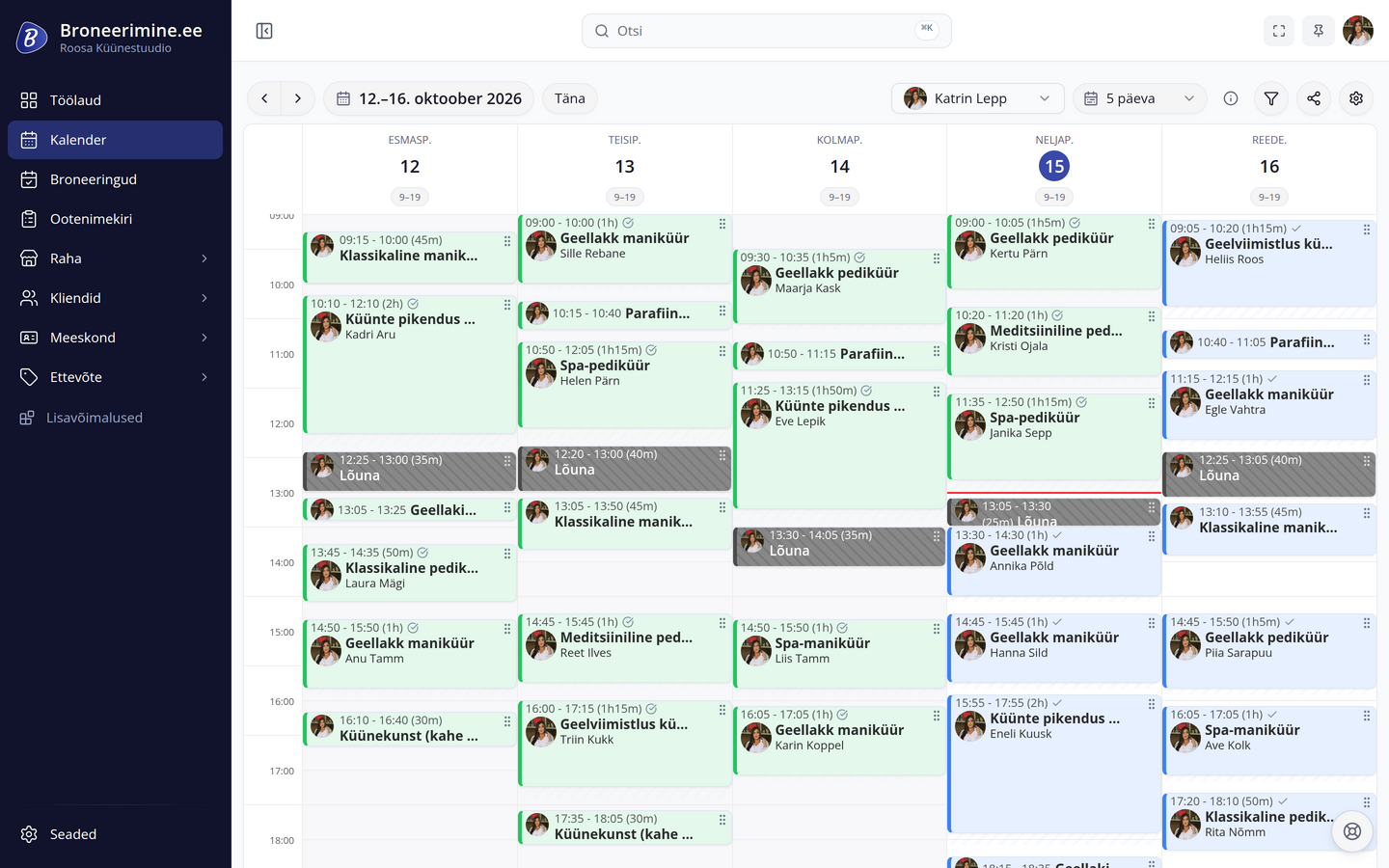
broneerimine.ee calendar: beauty salon bookings from Monday to Friday

BOOKING

Your client picks a time and the booking lands in your calendar

On your booking page, clients can browse services and prices and choose an available time. Once confirmed, the booking appears in your calendar and the client receives an email. They can book even after your working day is over.

This example shows a client booking at a beauty salon. Your booking page shows the services, prices and available times you have set up.

You can also:

  • share your booking link on social media or send it to a client in a message
  • add appointments arranged by phone to the same calendar
  • choose how far in advance clients receive a reminder

1 / 4

FEATURES

Tools to help organise your working day

Once bookings are in your calendar, you can use them for other everyday tasks too. Create an invoice from a booking, for example, or offer a newly available time to a client on the waitlist. You choose which features to use.

  • An available slot reaches a client on the waitlist

    Clients can join the waitlist and specify the service and days they want. When a suitable time opens up in the calendar, the system sends an offer. The client confirms the time and the booking appears in your calendar.

    Filling available slots
    Waitlist emailA slot has opened up – Gel polish manicureGood news! A time has opened up for your chosen service.Thursday, 8 October 2026 at 12:00This offer expires in 30 minutes.Book this time If the client does not respond, the next person on the waitlist receives the offer
  • Create an invoice directly from a booking

    When a client needs an invoice, you can create it from their booking. The client’s name, service and amount are filled in automatically. Just check the invoice and send it by email or download it as a PDF.

    Enter your business details, payment terms and invoice numbering rule once in settings.

    Invoices and payroll
    You set up onceBusiness details and invoice footerin settingsPayment due7 daysPayment referenceonCreate from bookingYour invoice is ready to sendInvoice2026-0117IssuedBuyerHenri VaherPayment due15.10.2026Personal training40,00 €Fitness assessment35,00 €Total75,00 €Payment reference202601171
  • An AI receptionist answers clients and makes bookings

    On your booking page, clients can ask the AI receptionist about services, prices and available times. It suggests a suitable time and, once the client confirms, the booking appears in your calendar. You can read the conversation afterwards.

    In the admin view, an assistant helps you see how your business is doing. You can ask about bookings and sales and request more detail.

    You choose which assistants to enable.

    AI assistants
  • The generator helps you build a work schedule

    When planning your team’s schedule, you need to account for employees’ workloads, holidays and preferred days off. Enter these in the system and the generator suggests three schedules. Choose one, adjust it if needed and apply it as working hours.

    Calendar and team
    You setKristi Tammfull-timeLiis Kaskprefers 24 Oct offfull-timeMarko Tammholiday 1–3 Octhalf-timeGenerateThe generator suggests three optionsOctober 2026BalancedPreferences firstHours firstBalanced: all preferences metThursdayFridaySaturday1Kristi Tamm10–18Liis Kask10–18Marko Tammholiday2Kristi Tamm10–18Liis Kask10–18Marko Tammholiday3Kristi Tamm10–16Liis Kask10–16Marko Tammholiday22Kristi Tamm10–18Liis Kask10–1823Liis Kask10–18Marko Tamm10–1824Kristi Tamm10–16Marko Tamm10–16Liis Kaskpreference

Price

How much does it cost?

The price depends on how many employees clients can book with. Select the number of employees to see the price of both plans. Add unlimited bookings, clients and services.

Bookable employees
Billing period

Basic

Accept bookings, manage working hours and keep client details.

Basic, 1 employee:15 €/ month

excluding VAT · 1 employee Pay annually for an average of 12,50 € per month and save 30 € a year

Booking essentials

  • Online booking and a public booking page
  • Calendar, working hours and work schedules
  • Clients, history and notes
  • Automatic email reminders
  • Waitlist and finding an available employee
  • Sharing available times on social media
  • Team calendar and employee permissions
  • Data import and export
Try for free

Full

Recommended

Manage sales and create invoices in the same system too.

Full, 1 employee:29 €/ month

excluding VAT · 1 employee Pay annually for an average of 24,17 € per month and save 58 € a year

Everything in Basic, plus

  • Point of sale, products and gift cards
  • Client invoicing
  • Commissions and payroll
  • Reports
  • Client reviews
  • Chair utilization – offers to move a booking
  • Buffer time after a service for cleaning or preparation
  • AI assistants that answer clients and make bookings
Try for free

Try the Full plan free for 30 days, with no card required. After the trial, choose which plan to continue with.

Try free for 30 days

How do I get started?

Create an account and add your services and working hours. Once you have checked your booking page, publish it and send the link to clients.

Import your existing clients, bookings and services from an Excel or CSV file. Write to us if you need help preparing the file.

Get help getting started
  1. Create an account

    Enter your business name, industry and contact details. If you work alone, you are the first employee on the account.

  2. Add services and working hours

    Add a price and duration for each service and set working hours in the calendar. If you have a team, assign services to the employees who provide them.

  3. Publish your booking page

    Check how your services and available times look to clients. Then publish the page and share the link.

Questions before you start

If you have questions or need help getting started, write or call. We provide support in Estonian.

info@broneerimine.ee
Is it suitable for my industry?

Broneerimine.ee suits work where clients choose a service and book a time for it. You can manage beauty treatments, massages, consultations, tattoo sessions, pet care and training, for example.

Do clients need an account to book?

Clients can book as a guest: they choose a service and time, then enter their contact details. They receive confirmation by email. They can also create an account to view their bookings.

How can I try the system?

Create an account and try the system free for 30 days. Add your services and working hours to see how booking would work for your business. After the trial, you decide whether to continue.

Can I use it if I work alone?

Yes. You are the first employee on your account and can add your services and working hours. If someone joins your team later, you can add employees to the same account.

Which languages does the system support?

The admin view, booking page and notifications are available in Estonian, English and Russian. You can use the system in your preferred language and serve English- and Russian-speaking clients too. All FAQs

Create an account and try itwith your own services and working hours.